

Published: May 2026 · 8 min read
UI motion design is no longer optional. Every major product — from Linear to Notion to Stripe — uses micro-interactions, hover states, page transitions, and loading animations to make their interfaces feel alive. But creating these animations has always required either learning After Effects or writing complex CSS/Framer Motion code from scratch.
Not anymore.
AI motion graphics editors now let you generate UI animations from text prompts, reference images, and even existing product screenshots — then export them as MP4 or GIF for your portfolio, documentation, or social media.
In this guide, we’ll walk through how to create professional UI motion design animations using AI, step by step.
What is UI motion design?
UI motion design is the discipline of adding purposeful animation to user interfaces. It includes micro-interactions (a button that subtly compresses on press), state transitions (a card expanding into a detail view), loading animations, page transitions, hover effects, and navigation flows.
The key word is purposeful. Good UI motion communicates something — it tells the user “this action succeeded,” “this element is interactive,” or “here’s where your content went.” Bad UI motion is decoration that slows things down.
The 12 principles of animation from Disney apply directly to UI: squash and stretch on button presses, anticipation before a drawer opens, follow-through when elements overshoot and settle, and secondary action when supporting elements respond with a slight delay.
Why UI motion design matters for product teams
Static mockups don’t sell products. Motion does.
When you’re pitching a feature to stakeholders, a Figma screenshot shows what something looks like. A motion graphic shows what it feels like. That’s the difference between “this looks nice” and “ship it.”
UI motion design is also critical for developer handoff. Instead of writing a spec that says “the card should animate in smoothly,” you hand the engineer a 6-second MP4 that shows exactly what you mean — timing, easing, stagger, everything.
And then there’s social media. A well-crafted UI animation on Dribbble, X/Twitter, or LinkedIn gets 5–10x the engagement of a static screenshot. It’s how designers build audiences and how products attract early adopters.
The traditional workflow (and why it’s painful)
Here’s how most designers create UI motion today:
- Design the UI in Figma
- Export assets to After Effects
- Spend hours setting up compositions, keyframes, and easing curves
- Add cursor animations manually
- Add click sounds manually
- Render and export
This process takes anywhere from 4 hours to 2 days for a single animation. And if you need to change the copy, swap a color, or adjust timing? You’re re-doing half the work.
Tools like Rive and Lottie solve the implementation side (getting animations into production code), but they don’t solve the creation side. You still need motion design skills and significant time investment.
The AI workflow: prompt to animation in minutes
AI motion graphics editors flip this process. Instead of building animations frame by frame, you describe what you want — or show the AI a reference — and it generates a fully editable animation on a timeline.
Here’s what the workflow looks like:
Step 1: Describe your UI animation
Start with a text prompt. Be specific about the UI element, the interaction, and the style:
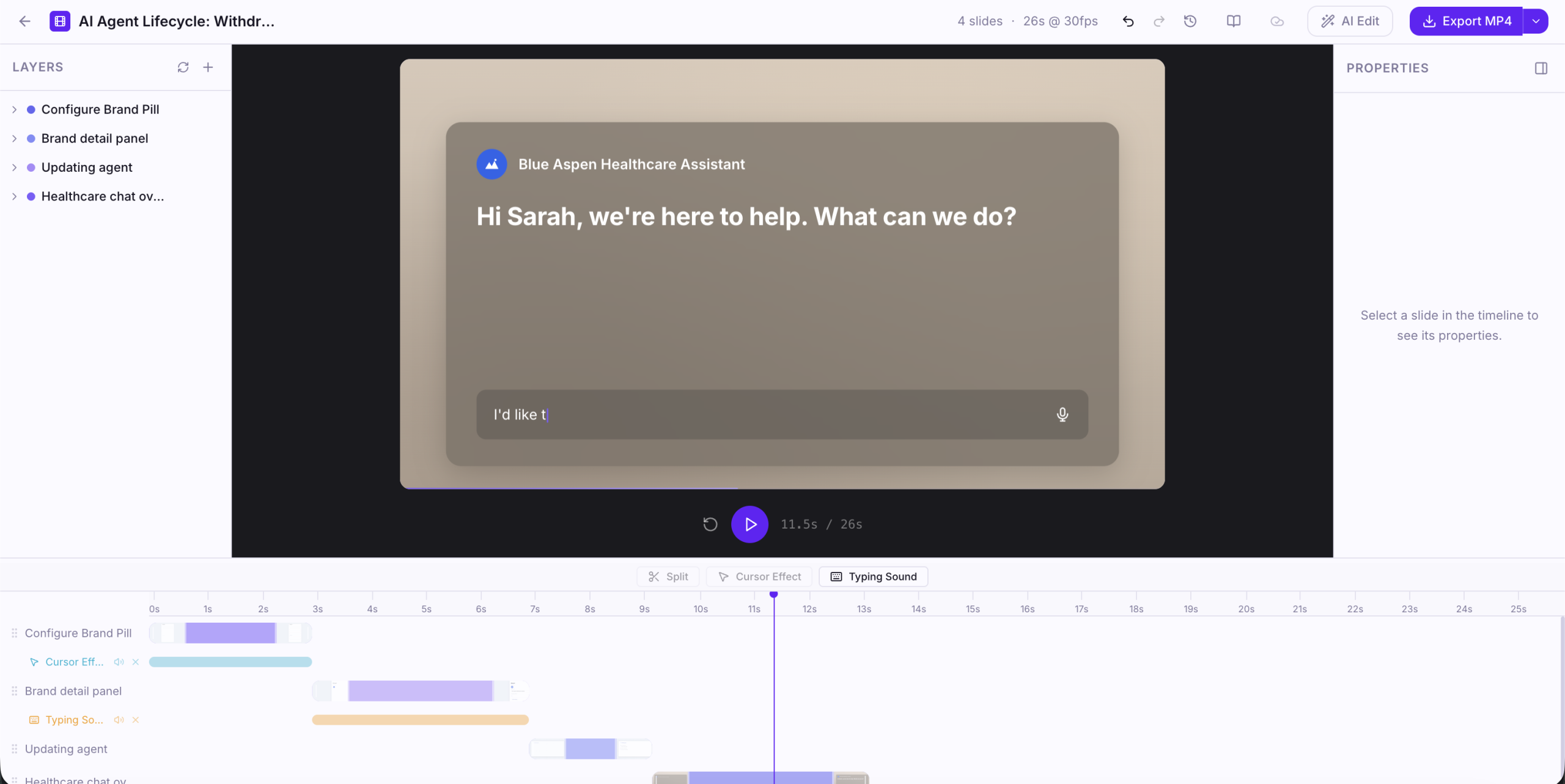
- “A healthcare chat assistant interface. The header fades in, then a message types out character by character with a cursor effect and typing sound.”
- “A dashboard with a CSAT score that animates from 0% to 92% with a circular progress ring, followed by bar charts that fill in with a stagger delay.”
- “A mobile app onboarding flow — 3 screens that swipe left to right with a spring easing curve.”
The more specific you are about timing, easing, and interaction type, the better the output.
Step 2: Add reference images (optional)
Upload screenshots of your actual UI. The AI will match the visual style — colors, typography, layout, spacing — and animate those exact screens rather than generating generic placeholder UI.
This is the killer feature for product designers. You’re not creating abstract motion exercises. You’re animating your actual product.
Step 3: Generate and preview
The AI generates a multi-layer animation on a full timeline. Each element gets its own layer — text, shapes, backgrounds, cursors, sound effects — with keyframes you can inspect and edit.
Hit play to preview. The animation runs at 30fps with real-time playback.
Step 4: Edit with AI or timeline
This is where the AI agent editor comes in. Instead of dragging keyframes around, you chat:
- “Slow down the logo reveal to 0.5x”
- “Add a mouse click sound when the button appears”
- “Change the transition from fade to slide-right”
- “Speed up the typing effect by 2x”
The AI edits your timeline directly. If you prefer manual control, the full timeline editor is right there — layers, keyframes, easing curves, frame-level precision.
Step 5: Add audio
Drop in mouse click sounds for button interactions. Add UI tap sounds for mobile animations. Layer in a subtle background music track. Audio is what separates a “motion mockup” from a “product video.”
Step 6: Export
Export as MP4 for social media, YouTube, and presentations. Export as GIF for Dribbble, documentation, and README files. Both formats are optimized for quality and file size.
5 UI motion design animations you should be creating
1. Micro-interaction showcases
Show a single interaction in a loop — a toggle switch, a like button, a form validation shake. These perform incredibly well on Dribbble and X/Twitter because they’re short, satisfying, and immediately understandable.
2. Full user flow walkthroughs
Animate an entire user journey: landing on the page, clicking a CTA, filling out a form, receiving a confirmation. Add cursor movement and click sounds to make it feel like a real screen recording — but with perfect timing and no mistakes.
3. Feature highlight videos
Isolate a single feature and give it a 10-second spotlight. Zoom into the relevant part of the UI, animate the interaction, add a text callout explaining what’s happening. Perfect for changelogs, product updates, and social media announcements.
4. Before/after redesign comparisons
Show the old UI transitioning into the new UI. This is powerful for case studies, portfolio pieces, and internal presentations to stakeholders.
5. Component library demos
If you maintain a design system, animate each component — buttons, modals, dropdowns, toasts — to show how they should behave. This becomes living documentation that developers can reference.
Tips for better UI motion design
Keep it under 10 seconds. Attention spans are short. If your animation needs to be longer, break it into multiple clips.
Use ease-out for entrances, ease-in for exits. This matches how objects behave in the physical world and feels natural to users.
Add stagger delays. When multiple elements appear, don’t animate them all at once. Stagger by 50–100ms for a polished, intentional feel.
Match your product’s actual timing. If your CSS transitions are 300ms, make your motion graphics match. Consistency between the animation and the real product builds trust.
Always add sound. A mouse click sound on a button press. A subtle whoosh on a page transition. Audio makes the difference between “nice animation” and “I need to try this product.”
The bottom line
UI motion design used to be a specialist skill that required After Effects expertise and hours of manual work. AI motion graphics editors have made it accessible to every product designer, developer, and marketer.
If you’re building a product in 2026, you should be creating UI motion content. For your portfolio. For your social media. For your developer handoff. For your launch.
The tools are finally here. The question is whether you’ll use them before your competitors do.
MotionGraphicsEditor.ai is an AI-powered motion graphics editor built for UI motion design, product launch videos, and animated content. Generate from text prompts, YouTube links, or reference images. Edit with an AI agent or full timeline. Export as MP4 & GIF.
Leave a Reply